myEDD Password Recover is made easy with this Step-by-Step Guide. Note that your account is locked after too many failed login attempts. You can try again in 1 hour or reset your password.
To recover your myEDD password, follow the simple steps below. Then, answer your security questions. You will receive an email with a reset link. If needed, you can now use your ZIP code instead of past payment amounts to speed up verification.
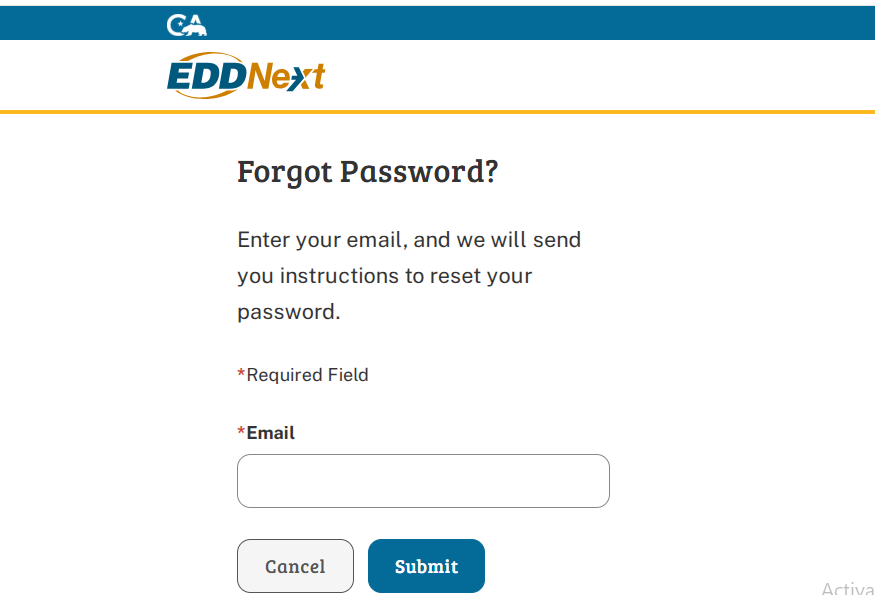
myEDD Password Recovery Steps
- Visit myEDD Login Page: Go to the myEDD login page and click Log In or Create Account.
- Select Forgot Password: Click the Forgot Password? link or copy myedd.edd.ca.gov/s/scpforgotpassword?language=en_US into your browser and launch.
- Enter Email: Enter the email address associated with your account and click Submit.
- Confirm Email: Open the password reset email from EDD. Click the link to confirm. This link is valid for 24 hours.
- Verify Identity: Answer the security questions established during registration.
- Reset Password: Create a new password.
myEDD Password Recovery Important Information
- Locked Account: If you try to log in too many times, you will be locked out for 1 hour. Alternatively, you can reset your password by following the steps above.
- Troubleshooting: If you cannot remember your security questions, you must contact the EDD. You also need to contact them if you no longer have access to the email.
- Verification Change: You no longer need to know your last payment amount. You can use your mailing address ZIP code.
If you are still unable to log in, you need to contact the EDD for assistance.
myEDD Password Recovery and Account Security FAQs
How do I set up login verification for an existing account?
When logging into myEDD for the first time, you must set up login verification.
- Log in to your myEDD account with your existing BPO email and password.
- Select a security question and enter your answer.
- Select Text Message, Phone Call, or Use my email instead.
- Enter the verification code you receive.
- Sign in to your myEDD account.
How do I find my myEDD password?
If you forgot your password:
- Visit myEDD.
- Select Log In Or Create Account.
- Select Forgot Password.
- Enter your email, then select Submit.
- Check your email and confirm your email.
- Verify your identity by answering the security question.
- Reset your password.
- Select Back to Login.
If you cannot remember the answers to your security questions, contact us.
Can I reset my myEDD password from a mobile device?
Yes. All of your myEDD updates can be completed using a mobile device. Make sure you have access to your email to reset your password.
How do I change my password, security question, login verification method, or language preference?
To update your myEDD account:
- Log in to myEDD.
- Select My Profile.
- Select the item you want to update.
Additional contact information, including your mailing address and phone number, can be updated in SDI Online or UI Online.
How is my personal information protected?
We have safety measures to find and stop fraud, including:
- Encrypted data.
- Notifications when your account is updated.
I’m locked out of myEDD account. What should I do?
myEDD will lock you out if you incorrectly enter your password or answer your security questions too many times. Try to log in again later.
If you still need help, contact us.

One thought on “myEDD Password Recovery: Step-by-Step Guide”
Hi, yeah this article is in fact nice and I have learned lot of things from it about resetting my account password.
thanks.